
Multiple Data Series using Price Data Set
This is useful when analysing trends with Data Sets and you may also:
Search for and access a Price Data Set
Edit the Data Set
View the Data Set in a Graph or on a Table
Download the Data Set
Add a Price Data Set
A Data Set is a collection of Data Series in the Data Warehouse to be analysed together. The starting point for analysis in most situations is the creation of a Data Set using the web application that contains the Data Series to be analysed, (e.g., all Maize prices in East Africa, all prices in Honduras, etc.). To create a Data Set you must Add a Price Data Set:
Window: Add price data set
Name: Create a Name to identify the Data Set. Enter a name for the Data Set that represents the data it will contain, and which will help you and other users find the correct Data Set when you want to use it again in the future.
Data Set Id: The identifier is set automatically. Useful for pulling data into Excel. Is a primary key, the identifier, a sequential number assigned automatically by the system. It is useful for the parameterised spreadsheets. You can take that number from there and type it into the parameter box, refresh and get all the data for the data set you just created. You can also update it, and it is thanks to the ID number appearing on the URL that the spreadsheet connects with KDW.
Start and End date: Optionally, enter Start and End timestamps for the Data Set if you want to limit the records to prices for a particular period. If you do this, you should also include the date range in the name of the Data Set so that other users understand that it does not contain all data. If you leave the Start and End blank, then the Data Set will contain all the available data.
Description: Optionally, enter a description or notes about the comparisons in the Description box.
Reporting Schedule: Please select the relevant schedule from the dropdown list.
Common units (Weight, Volume and Item) and Common currency: To allow comparisons of prices. If you leave these fields as they are, everything would be converted into kg and USD. (HO always analyses in USD) If FO are trying to analyse something from a neighbouring country, it would make more sense to show the results in the local currency. Note that the default values will be appropriate for most cases, but it is possible to use them to compare data to a specific local product. For example, the Kenya FO could build a dataset of all Wholesale Maize Prices and ask for them to be compared as the price in KES per 90kg bag, because that is how the prices are captured in Kenya. Also, a unit of measure can be converted through intermediate units. The system automatically converts prices where there is a Unit of Measure Conversion defined between the Data Series Unit and the desired Common Unit. This works in the same way as the exchange rate mechanism – It uses USD as a common intermediate currency if there is no direct rate for the conversion. This allows users from neighbouring countries to convert a Data Set containing multiple common units into their country units; Example converting Wholesale Maize from TZS per 100 kg bag to KES per 90 kg bag.
Use market exchange rates If selected, the system will use market level exchange rate if it finds it (meaning if it exists or was previously entered). I.e. This month there is a market exchange rate at this market between the currency that the price is in and the common currency for the data set. Then you will get a conversion using the market level exchange rate. If there is no market level exchange rate, it is:
Either because we don’t have a series for this market exchange rate
Or because we don’t have a rate for this month
By default it will fall back for using the normal interbank rate between the two currencies
Data series: To create a data set you can use the filter; start typing and the system will narrow down your search (i.e. Type Maize and every Maize data series will appear) Note that Calculated data sets, and Relative Prices appear under this list as well. This can be useful only if you want the data to be exported into excel. In this case the data sets will just enable you to gather a bunch of data together and basically have a basket for it that they could re-use each month (i.e. all the important products in my country)
Use the arrows after selecting the relevant Data Series:
To select all data series: press Control and the letter A and then press the arrow
To select one data series at a time: Select and press the arrow
To select multiple data series: Hold down Control while selecting and then press the arrow
Visibility: Owner, Group, Public
The KDW allows for a private area for personal Data Sets and calculated Data Series. This implies that:
* FOs can add and edit and use their data sets but cannot edit _Group_ and _Public_ data sets.
NTM and RMS can add and edit their own data sets as above, but can change ownership within their FO/RO and change Visibility to the Group option.
M&T can add and edit their data sets, can view everything and change the Visibility of a dataset to Public option.
Owner: If you are adding a new Data Set, your name will be appearing. If you are accessing an already existing one, you will be able to see who added it.
Window: Select price data set to change
The Data Warehouse has features for analysing trends across markets and commodities using Data Sets. After adding and saving the Data set, a screen will appear with an interactive chart that allows you to view the prices for a commodity in multiple markets over time. You can also browse the data online using a scrolling grid.
It is from this window that you can first access the data sets. You can use the search box if you already know key words from the data set name. The data set id is also available in case you want to refresh data. The visibility and owner is listed in each row to help decide the user if a given data set can be modified or if it is accessible.
Window: Change price data set
You may change and edit the settings. It will depend on the owner and your rights in KDW. Most importantly are the buttons at the top hand right of the screen:
Excel Web Query URL:

To get the URL to refresh the data and work offline
* Use Microsoft Internet Explorer to log into the Data Warehouse
* Copy the URL from the _Excel Web Query URL_ link for the Data Set that you want to use to your clipboard (right-click and _Copy Link Address_ ).
* Open a new Excel Worksheet
* Select the _Data_ menu and then the _From Web_ ribbon button
* Paste the URL into the Address input box and press _Go_
* Wait for the _Import_ button to become enabled (which will take up to 15 minutes depending on the size of the dataset) and then press it
* At the dialog box asking where you want to insert the data place the data at $A$1 on a blank sheet (this will be the default if you are creating a new spreadsheet)
The instructions can vary slightly for different versions of Excel – this set work for Excel 2007 and 2010. Excel 2013 might be slightly different.
If they can’t see an “From Web” button then it might be under the “Other Data Sources” drop down.
For advanced users (e.g. HO) it might be better to use the From XML option and change the URL so that it says “format=xml” instead of “format=html” – that will allow formulae to be added to the end of the data table more easily, but it is more confusing to set up and so we don’t recommend it for users who are not very competent with Excel already.
The Copy Link Address text when you right-click the Excel Web Query URL link varies with browser – e.g. in Firefox it says Copy link location
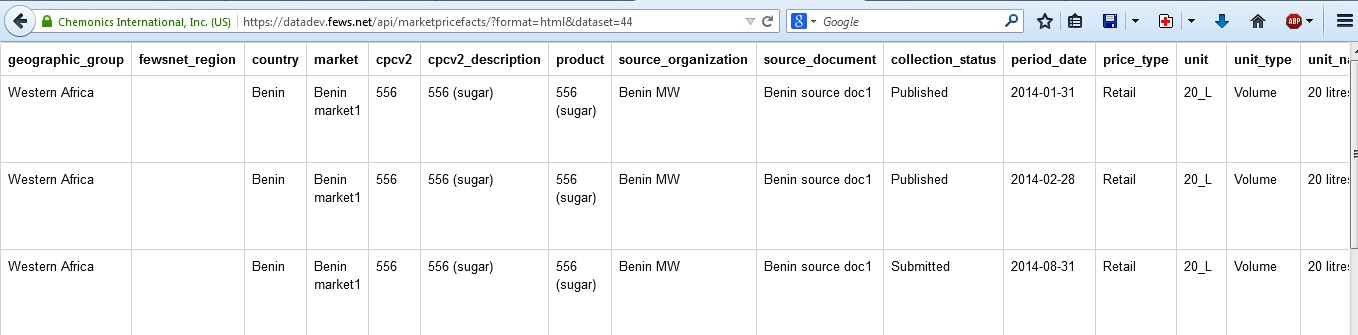
Figure 17. Copy Link Address
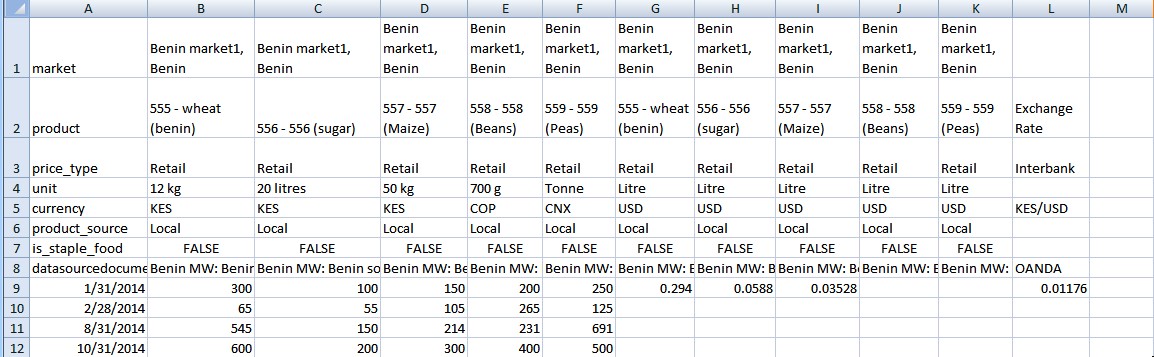
Figure 18. Download
Download: If you download the data by clicking this button you will get the CSV file shown below.
There is one column per Data Series with the original price
Followed by one column per Data Series with the common currency price
Followed by one column per Exchange Rate
One row per Collection Period
To extract the data you can right click the Download button:
Select Copy link
On the new Macro excel sheet provided, click on the View Tab, then select macros,
The excel prompts “Create new Html table” then click Run
Paste the URL
Press Ok
To refresh the downloaded data extract:
Using the spreadsheet containing the data,
Place your cursor on a cell and right click on it,
Click on the Refresh option
The data is refreshed in less than a minute
Figure below shows an example of the data once it has been refreshed.
Figure 19. Refreshable Microsoft Excel from the New KDW Web Query URL
.jpg)
Browse: From the chosen data series within the selected data set, when you click Browse, you will get a table showing the information from the chosen data series classified according to the HO setting (defined metadata). I.e.: a table with the first Market Series from the different collection periods shown under ‘Date’
You can scroll down to see the other Data Series
Each row represents a data point of the data series
Chart: useful tool for analysing commodities across markets and time where a graph line to represent each product price is generated against a time period. In the case of the data set, when such time periods are comparable, you will be able to visualise the differences.
For a Data Series whose schedule is Monthly if one uses the overview map (small chart at the bottom) to zoom to the smallest range possible, the smallest it goes is a month e.g. Jan ‘13, Feb ‘13, Mar ‘13 etc. The smallest range one can zoom into is equal to the Schedule of the Source Document - in this case monthly.
For mixed Data Sets (those that contain monthly and non-monthly series) the minimum range one can zoom into is set equal to the smallest schedule of any of the data series. For example, if one has a dataset that contains data series with a quarterly schedule, another with a monthly schedule and the last with a weekly schedule, then the minimum range possible will be set to a week.
On a weekly schedule, weekly data will be visible on the chart data points throughout the trend line. The tables will also indicate when there has been a change of schedule by looking at the dates.
When clicking on ‘Chart’ there is a loading message “Loading”
The system displays a message that there is no data to display when no data is found in the price data set selected.
When there is a missing data point, the value of the line just stops and there is a gap until data is again available.
Date pickers have drop down calendars where a user can select a date without having to worry about the required date format.
The Y-axis is labeled with currency or unit of measure, e.g. a label might be the price in USD per Kg.
A user can view the common currency when hovering over items.
There are values on the y-axis and major and minor tick marks to help judge values.
You can change the time period displayed on the screen by using the Zoom buttons, or by entering the From and To dates directly, or by dragging the edges of the window in the overview map underneath the main chart.
Hovering over a point in the chart will display the full details for that Collection Period, including the prices in the Common Unit and Currency.
You can export the Chart as an image by clicking chart context menu in the top right corner above the From and To date fields.
History: Is the Detail Audit Trail access