
Creating Data sets
To create a Data Set, you can select among Data Series returned by the search result from the “Available Data Series” tab or you can use the Select All button to select all the Data Series that were returned by the specified search criteria. The selected data series and their count will be shown under the Selected Data Series tab .
Once you are done with selecting the Data Series, click on the button SAVE NEW DATA SET.
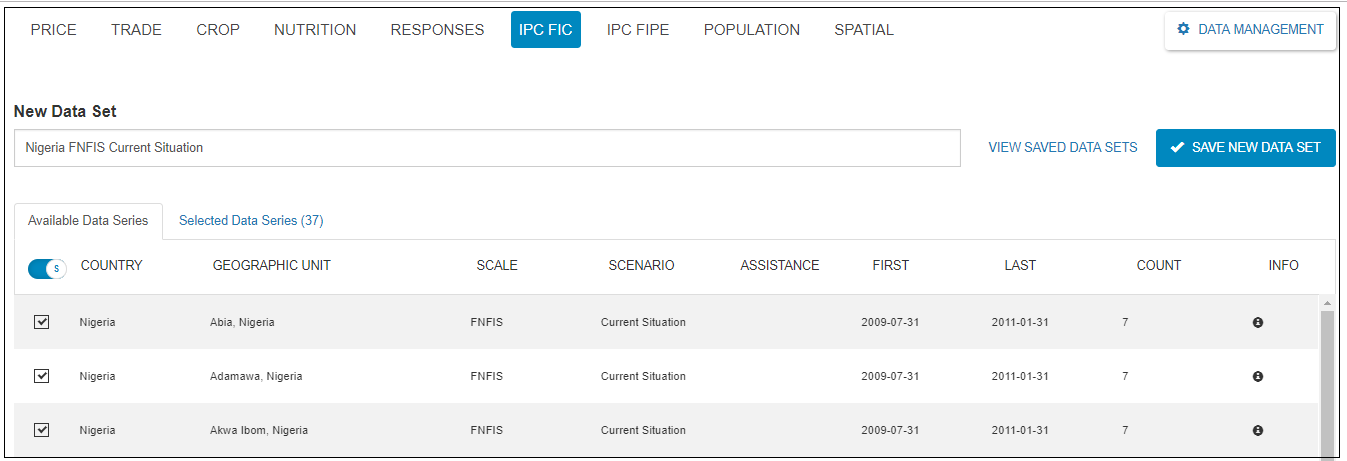
Figure : Saving Data set screen
The system displays the “Save Data Set” dialog box where you can specify:
Data Set name
Data Set description
Data Set visibility
Data Set owner
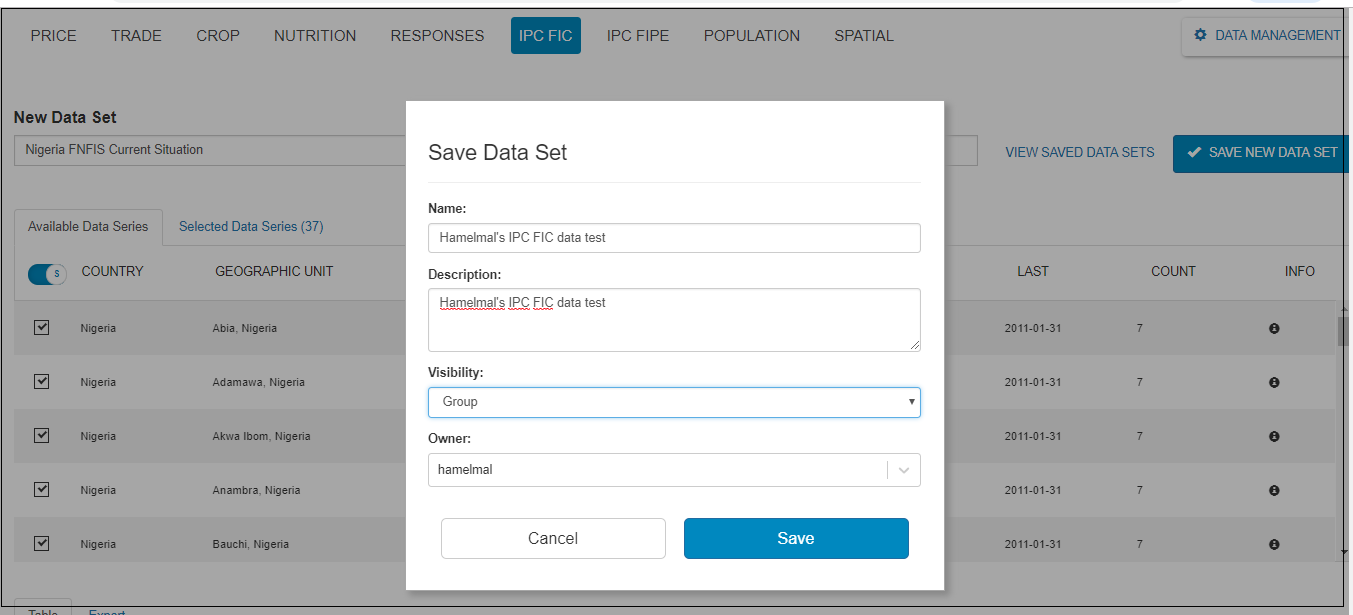
Figure: saving data set dialog box screen
Specify the above parameters and click on the Save button to save the data set. The data set will be saved and the system displays a success message “Data set was successfully created.” Once you have saved the data set, the system will automatically change the view to show you the data set you just saved.
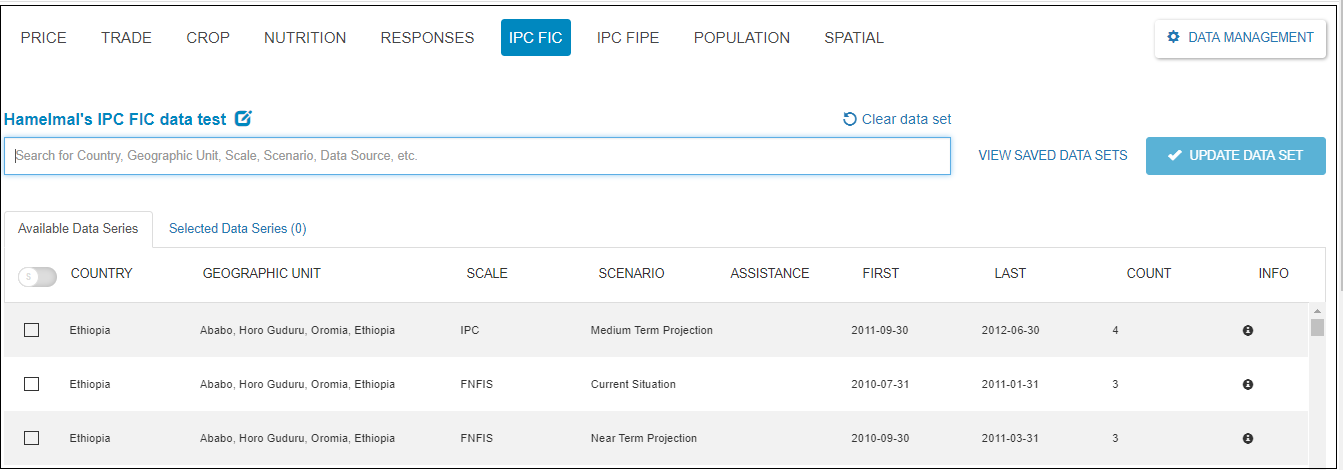
Figure:Saved data set screen
As you can see it in the above screen-shot, the saved data set with the detail information will be shown.
To return back to the data series view page click on the button Clear data set and the system will go back to the search or data series view page where you can specify criteria and search the data.
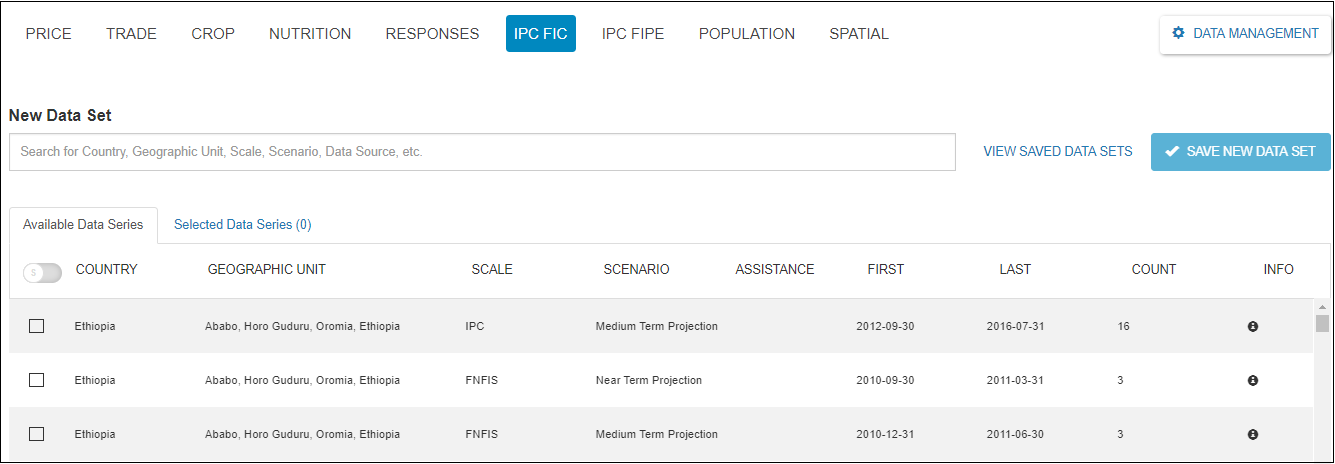
Figure: Data series view screen