
Nutrition Data Domain User Help Page
Introduction
Nutrition Indicator is a dataseries in the Nutrition domain in KDW Data Warehouse (KDW)
The Nutrition Indicator data in KDW consists of dataseries (Nutrition Indicator) and datapoint (Nutrition Indicator Value) records.
This page provides information on both dataseries and datapoints.
Nutrition Indicator (Dataseries)
Nutrition Indicator Value (Datapoints)
 Go to Top
Search or filter Nutrition Indicator dataseries
The Nutrition Indicator page lists the currently available Nutrition Indicator dataseries in a grid format (see below) with column headers: Survey population, Indicator, Survey
The Nutrition Indicators page can be opened from KDW menu: Dataseries Management > Survey > Nutrition Indicator
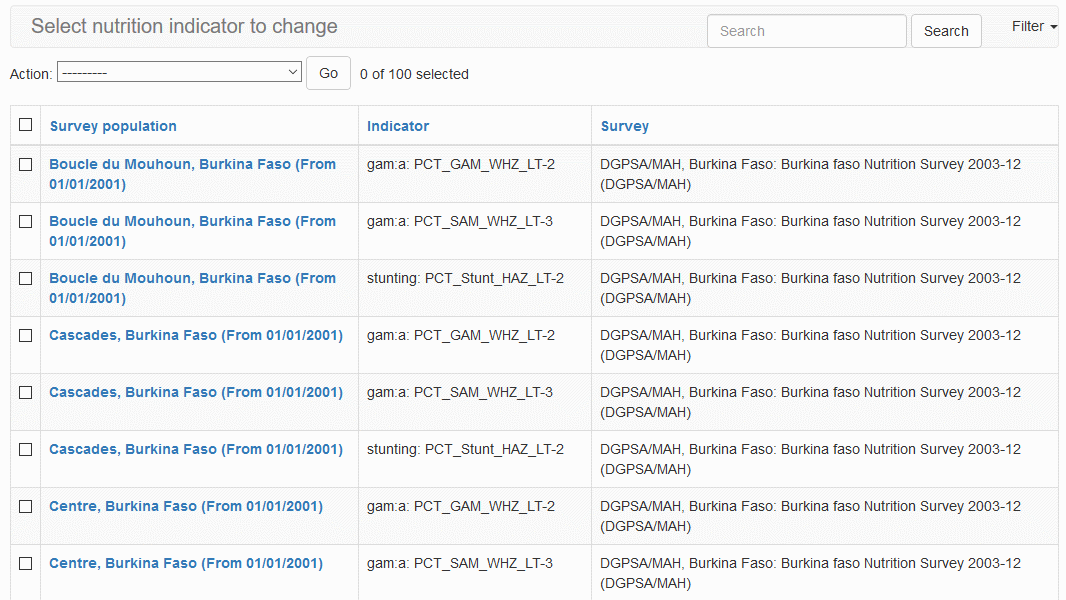
Fig. 1: Nutrition Indicator page
You can search the list by entering a search criteria in the Search text-box at the top of the Nutrition Indicators page and clicking on the  button to search and display matching results in the grid (see below).
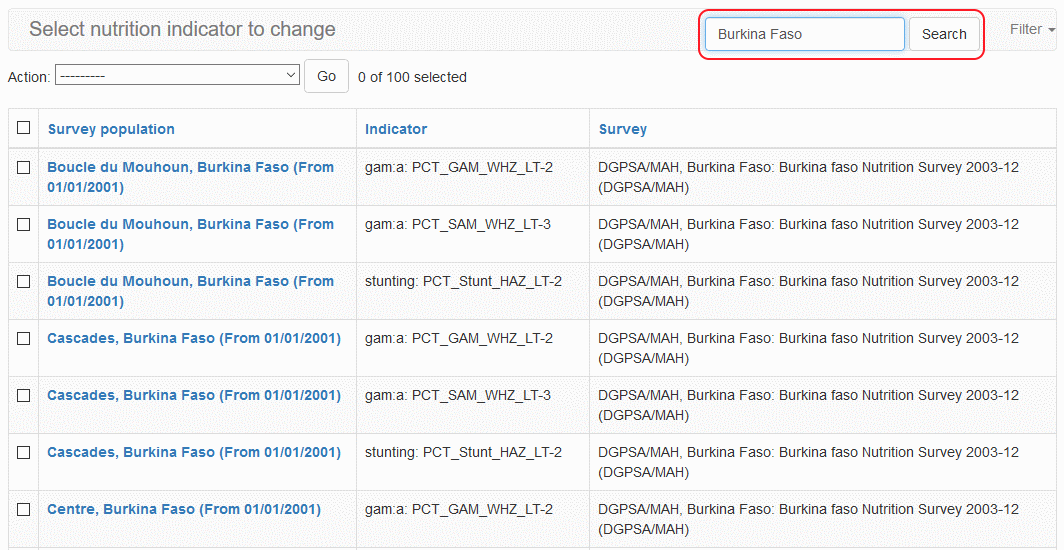
Fig. 2: Search Nutrition Indicator data
In addition to searching the Nutrition Indicator records with a free-text criteria, the system also allows you to Filter the records by specifying one or more of the following filter criteria:
Survey
Country
To set a filter criteria, you can use the  button at the top-right side of the page (see below). When you specify a filter by selecting a value from the drop-down list, the system will automatically apply the filter and display the records that match all the filters you have specified.
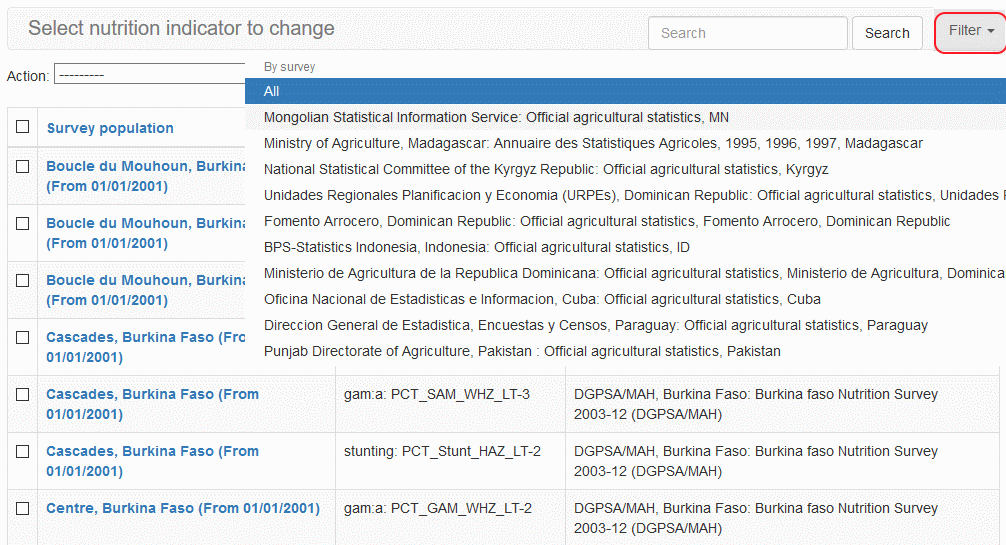
Fig. 3: Filtering Nutrition Indicator data
Adding Nutrition Indicator
Adding Nutrition Indicator dataseries and datapoints are done through the import functionality described below
Editing Nutrition Indicator
An existing Nutrition Indicator information in the system can be modified and saved as needed.
To Edit a given Nutrition Indicator:
From the list in Nutrition Indicator page, click on the link within the Survey population column of the record you would like to edit.
The system displays the Change Nutrition Indicator page as shown below.
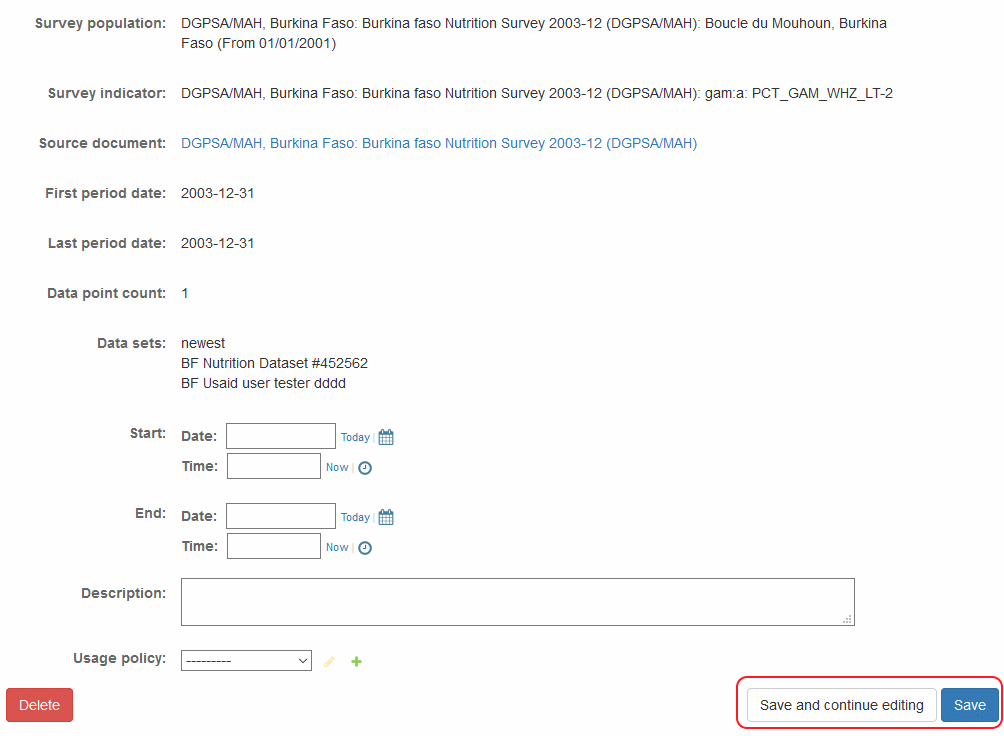
Fig. 5: Editing Nutrition Indicator data
Modify the data in the page as needed and click on one of the
 buttons to save the modified records.
The system will save the data accordingly and display success/error message.
Deleting Nutrition Indicator
An existing Nutrition Indicator information in the system can be deleted if necessary. The system allows for a deletion of one or more records at a time as given below:
Deleting a Single Nutrition Indicator
From the list in Nutrition Indicator page, click on the link within the Survey population column of the record you would like to delete.
The system displays the Change Nutrition Indicator page as shown below.
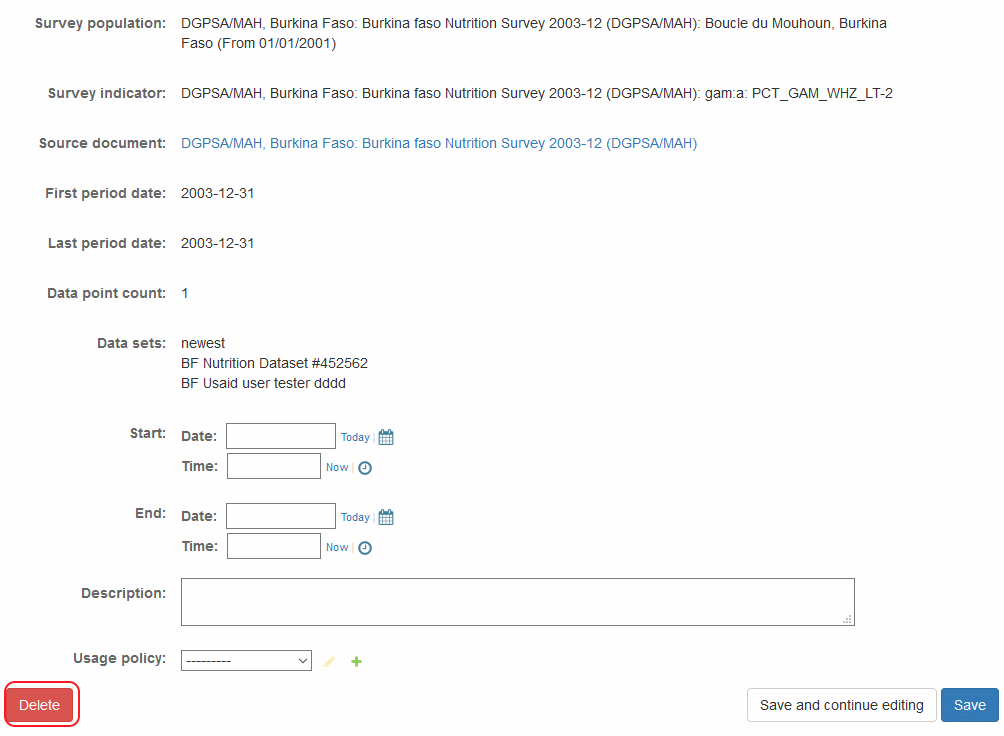
Fig. 6: Deleting Nutrition Indicator data
Click on the
 button at the bottom-left side of the page to delete the record.
The system will open another page with summary information on the data you are about to delete including a list of Nutrition Indicator datapoints that belong under the Nutrition Indicator dataseries you selected. It will also display a prompt with a confirmation message Are you sure? and provides you with
 buttons at the bottom of the page.
If you are certain that the records can be deleted, you can click on Yes, I am sure button. If you are not certain, please click on the link No, take me back. Please note that deleted records cannot be recovered and this functionality should be used sparingly.
Deleting one or more Nutrition Indicator
It is possible to delete multiple Nutrition Indicator data from the system by following the steps below:
From the list in Nutrition Indicator page, select one or more Nutrition Indicator you would like to delete.
From the Action drop-down list at the top, select Delete selected Nutrition Indicator
Click on the

The system will open another page with summary information on the data you are about to delete with a list of Nutrition Indicator datapoints that belong under Nutrition Indicator you selected. It will also display a prompt with a confirmation message Are you sure? and provides you with
buttons at the bottom of the page.If you are certain that the records can be deleted, you can click on Yes, I am sure button. If you are not certain, please click on the link No, take me back. Please note that deleted records cannot be recovered and this functionality should be used sparingly.
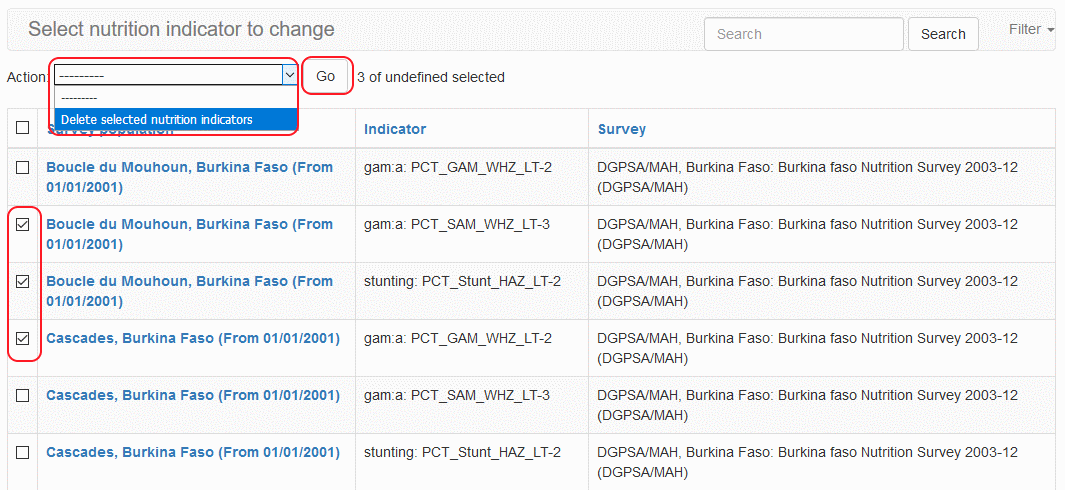
Fig. 7: Selecting Multiple Nutrition Indicator data for deletion
Importing Nutrition Indicator
Importing Nutrition Indicator dataseries and datapoints are done through the import functionality described below
Exporting Nutrition Indicator
Nutrition Indicator Value datapoints under Nutrition Indicator dataseries can be downloaded as described here.
Downloading Nutrition Indicator
The system allows downloading of Nutrition Indicator data in CSV format for the selected Nutrition Indicator dataseries.
To download Nutrition Indicator data:
From the list in Nutrition Indicator page, click on the link within the Survey population column of the record you would like to download.
The system displays the Change Nutrition Indicator page.
Click on the
 button at the top-right side of the page.
When the system displays the save file dialog box, save the file in the desired location on your local computer.
Browsing Nutrition Indicator
The system also allows an on-line viewing of Nutrition Indicator.
To Browse Nutrition Indicator:
From the list in Nutrition Indicator page, click on the link within the Survey population column of the record you would like to browse.
The system displays the Change Nutrition Indicator page.
Click on the
 button at the top-right side of the page.
Then the system displays the Data Series Explorer page where you can see the details of the datapoints in the Nutrition Indicator including the Value and Previous Value of each datapoints.
Viewing Charts of Nutrition Indicator
The system displays the datapoints in an Nutrition Indicator in a flexible time-series chart format allowing you to easily see the datapoint values over a period of time.
To view Nutrition Indicator chart:
From the list in Nutrition Indicator page, click on the link within the Survey population column of the record you would like to chart.
The system displays the Change Nutrition Indicator page.
Click on the
 button at the top-right side of the page.
Then the system displays the Data Series Chart page where you can see the details of the datapoints in the Nutrition Indicator as a trend-line chart.
The Charts page will let you select the date range for the datapoints that you would like included in the display by:
Setting the Zoom period to 6 months, YTD, 1 year, 2 year, 3 year, 4 year, 5 year, or All datapoints in the Nutrition Indicator dataseries
Specifying a free start date (from date) and end date (to date)
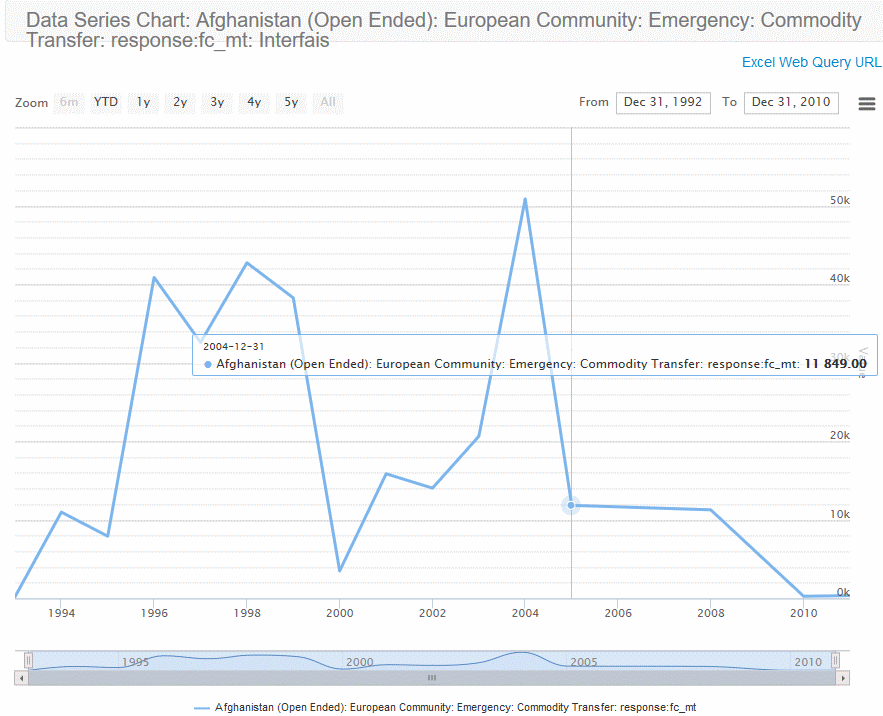
Fig. 10: Charting Nutrition Indicator data
Viewing History of Nutrition Indicator
The system tracks various events that are performed against an Nutrition Indicator data including the addition, updates or deletion of data in the system.
To View the history of an Nutrition Indicator:
From the list in Nutrition Indicator page, click on the link within the Survey population column of the record you would like to view the history.
The system displays the Change Nutrition Indicator page.
Click on the
 button at the top-right side of the page.
Then the system displays the Change history page where you can see the details of the updates and other operations carried out against the selected Nutrition Indicator record (see below).
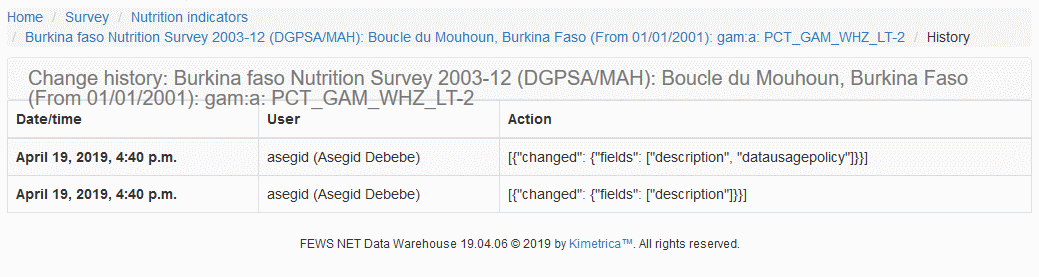
Fig. 11: Nutrition Indicator dataseries history.
Search or Filter Nutrition Indicator Value datapoint
The Nutrition Indicator Value page lists the currently available Nutrition Indicator Value datapoint in a grid format (see below) with column headers: Data series, Period Date, Collection Status, Value
The Nutrition Indicator Value datapoint page can be opened from KDW menu: Dataseries Management > Data Points > Nutrition Indicator Value
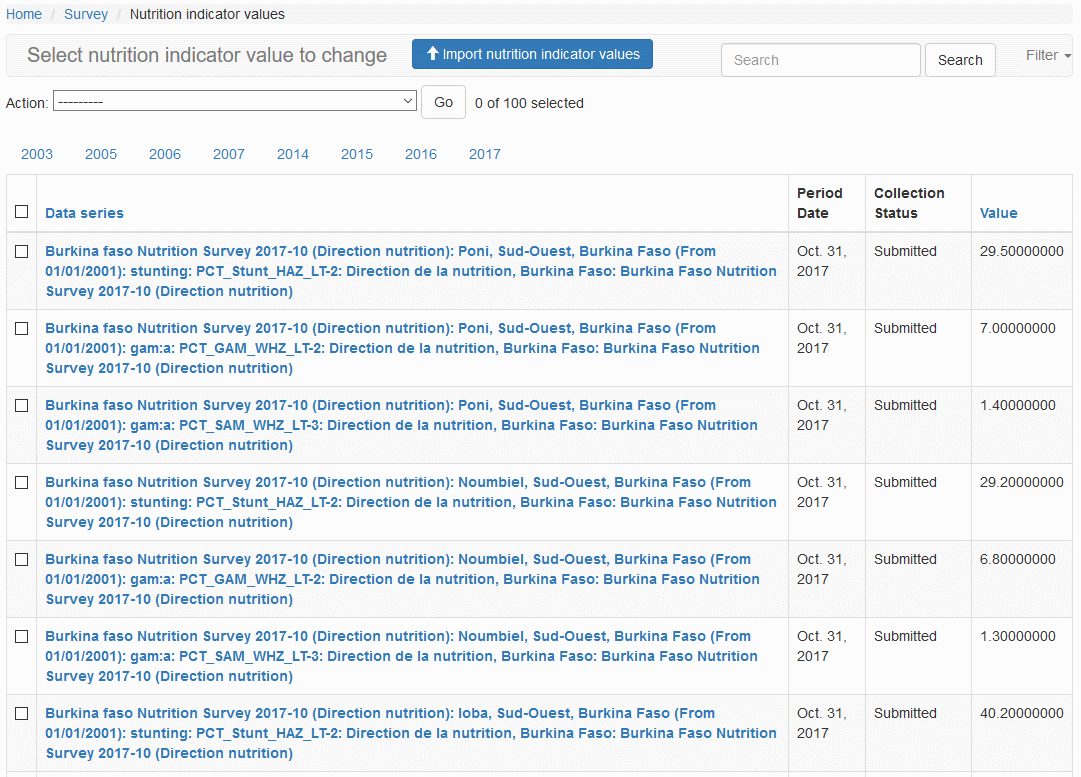
Fig. A: Nutrition Indicator Value page
You can search the list by entering a search criteria in the Search text-box at the top of the Nutrition Indicator Value page and clicking on the button to search and display matching results in the grid (see below).
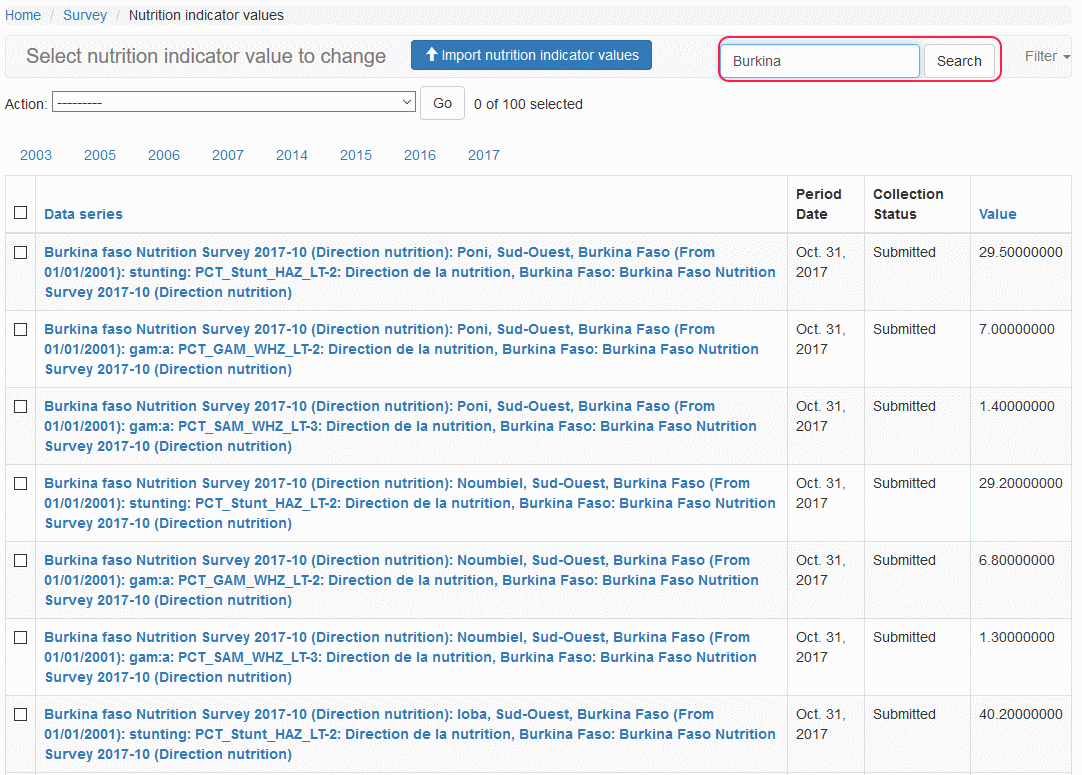
Fig. B: Search Nutrition Indicator Value data
In addition to searching the Nutrition Indicator Value records with a free-text criteria, the system also allows you to Filter the records by specifying Country filter.
To set a filter criteria, you can use the button at the top-right side of the page (see below). When you specify a filter by selecting a value from the drop-down list, the system will automatically apply the filter and display the records that match all the filters you have specified.
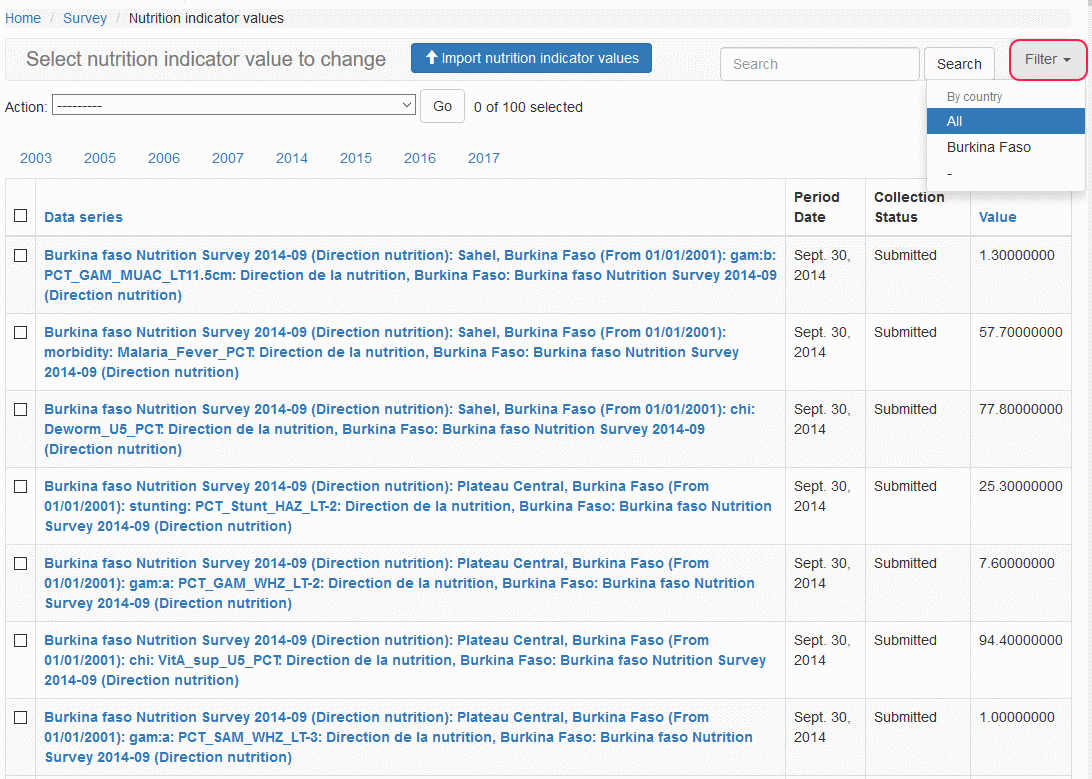
Fig. C: Filtering Nutrition Indicator Value data
Adding Nutrition Indicator Value
We can add Nutrition Indicator Value datapoints into the system using the import functionality described below
Editing Nutrition Indicator Value
An existing Nutrition Indicator Value information in the system can be modified and saved as needed.
To Edit a given Nutrition Indicator Value:
From the list in Nutrition Indicator Value page, click on the link within the Data series column of the record you would like to edit.
The system displays the Change Nutrition Indicator Value page as shown below.
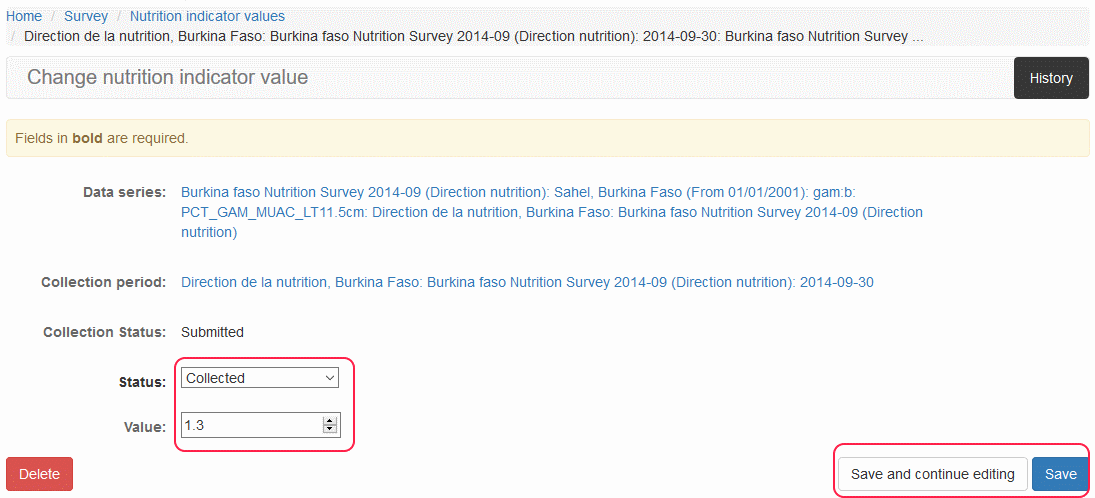
Fig. E: Editing Nutrition Indicator Value data
Modify the data in the page as needed and click on one of the
 buttons to save the modified records.
The system will save the data accordingly and display success/error message.
Deleting Nutrition Indicator Value
An existing Nutrition Indicator Value record which is not yet Published in the system can be deleted if necessary. The system allows for a deletion of one or more records at a time as given below:
Deleting a Single Nutrition Indicator Value
From the list in Nutrition Indicator Value page, click on the link within the Data series column of the record you would like to delete.
The system displays the Change Nutrition Indicator Value page as shown below.
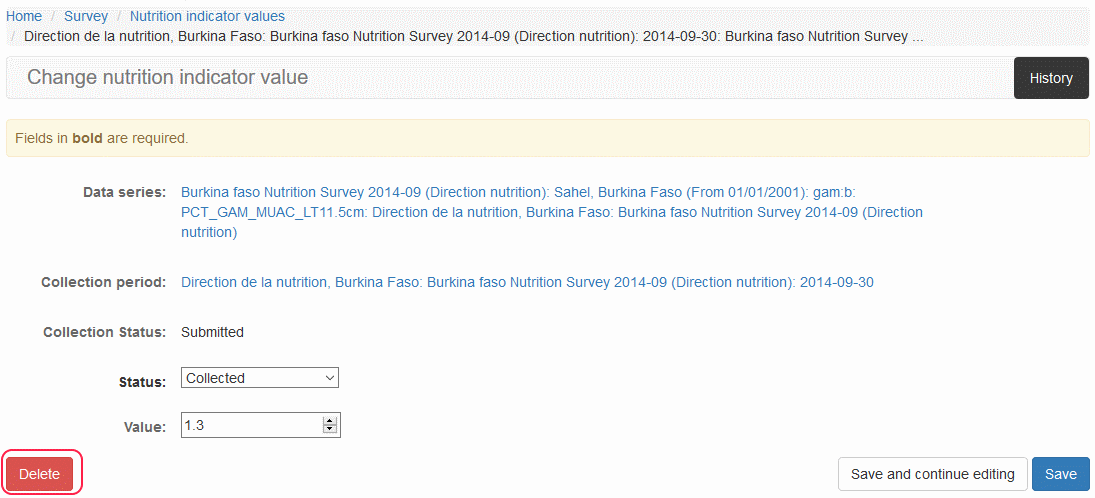
Fig. F: Deleting Nutrition Indicator Value data
Click on the
button at the bottom-left side of the page to delete the record.The system will open another page with summary information on the data you are about to delete and a prompt with a confirmation message Are you sure? and provides you with
buttons at the bottom of the page.If you are certain that the record can be deleted, you can click on Yes, I am sure button. If you are not certain, please click on the link No, take me back. Please note that deleted records cannot be recovered and this functionality should be used sparingly.
Deleting one or more Nutrition Indicator Value
It is possible to delete multiple Nutrition Indicator Value data from the system by following the steps below:
From the list in Nutrition Indicator Value page, select one or more Nutrition Indicator Value records you would like to delete.
From the Action drop-down list at the top, select Delete selected unpublished Nutrition Indicator Values
Click on the
The system will open another page with summary information on the data you are about to delete with a list of Nutrition Indicator Value datapoints that belong under Nutrition Indicator Value you selected. It will also display a prompt with a confirmation message Are you sure? and provides you with
buttons at the bottom of the page.If you are certain that the records can be deleted, you can click on Yes, I am sure button. If you are not certain, please click on the link No, take me back. Please note that deleted records cannot be recovered and this functionality should be used sparingly.
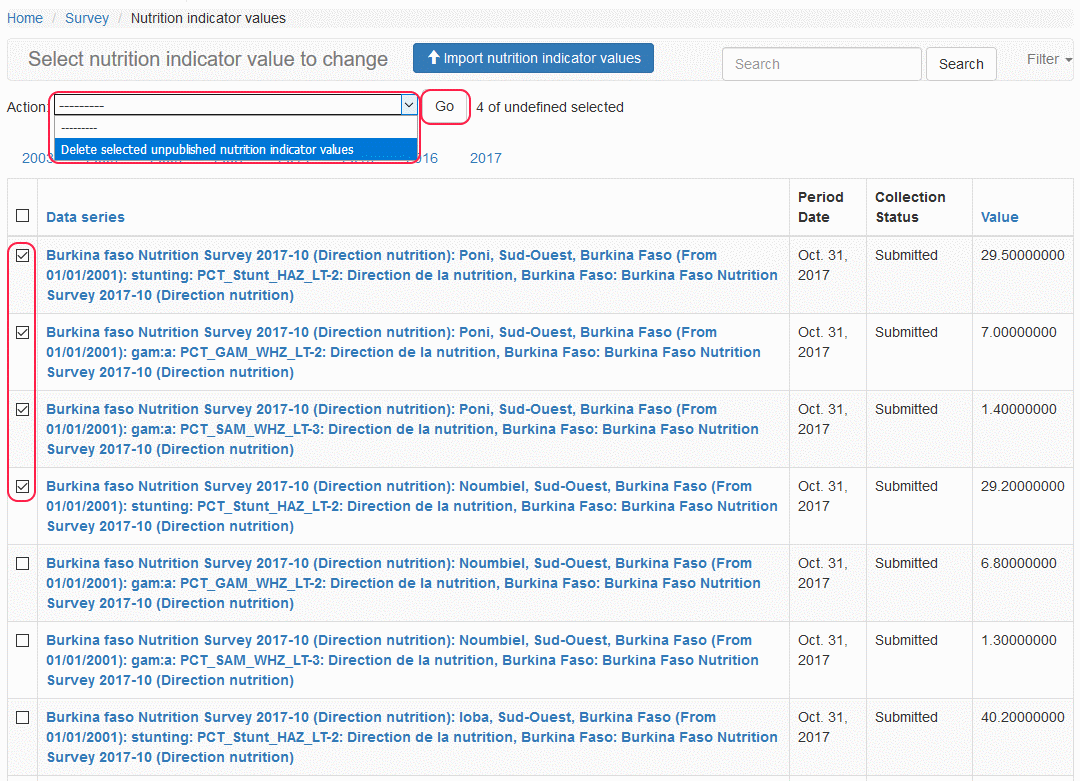
Fig. G: Selecting Multiple Nutrition Indicator Value data for deletion
Importing Nutrition Indicator Value
Users can upload/import a bulk file containing data_source_organization, data_source_document, country, survey_type, data_domain, geographic_unit, population_group, dominant_livelihood_zone, indicator, has_confidence_interval, collection_name, start_date, period_date, datapoint_status, value, ci95_low, ci95_high, datacollection, datacollectionperiod, dataseries, collection_date, period_notes, id, created, modified, status, status_changed, specialization_type, description, high_value into the system using the Import functionality.
To import Nutrition Indicator Value data in a file into the system:
From the Nutrition Indicator Value pages, click on the Import Nutrition Indicator Value button or you can open the same page from Dataseries Management > Import > Import Nutrition Indicator Values menu.
The system opens the Import page where you can upload the file and specify the file format/type by selecting a value from the Format drop-down list.
Click on the Submit button to start the import process.
After the processing the data in the uploaded file, the system will display the summary of number of records that are:
New - the records in the file to be newly added to the system.
Updated - the records in the file that will be updated into an existing data in the system.
Delete - the records in the file that will be deleted from the system.
Skip - the records in the file that will be skipped.
Error - the records in the file that has error in the data and will not be added to the system.
Total - total number of records in the file.
To continue with the import, please click on the
 button at the right side of the page.
The Nutrition Indicator Value records will be imported and appropriate message will be displayed.
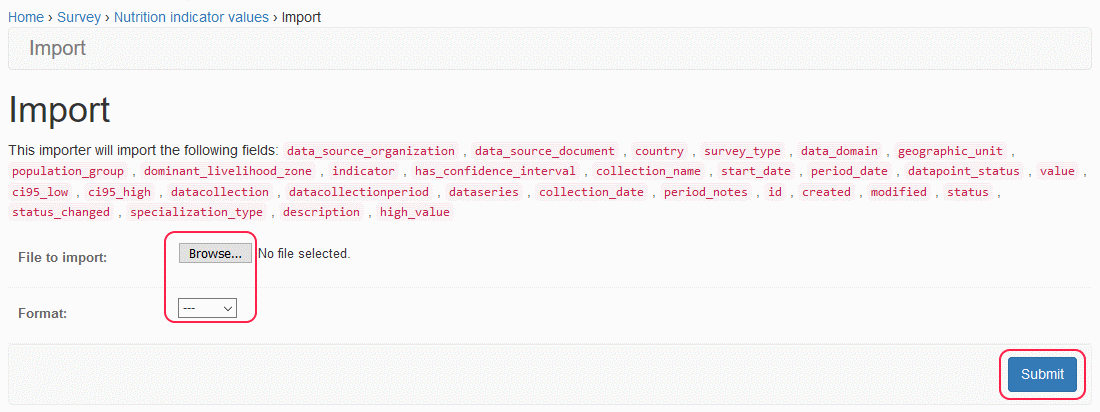
Fig. H: Importing Nutrition Indicator Value data
Viewing History of Nutrition Indicator Value
The system tracks various events that are performed against an Nutrition Indicator Value data including the addition, updates or deletion of data in the system.
To View the history of an Nutrition Indicator Value:
From the list in Nutrition Indicator Value page, click on the link within the Data series column of the record you would like to view the history.
The system displays the Change Nutrition Indicator Value page.
Click on the
button at the top-right side of the page.Then the system displays the Change history page where you can see the details of the updates and other operations carried out against the selected Nutrition Indicator Value record (see below)
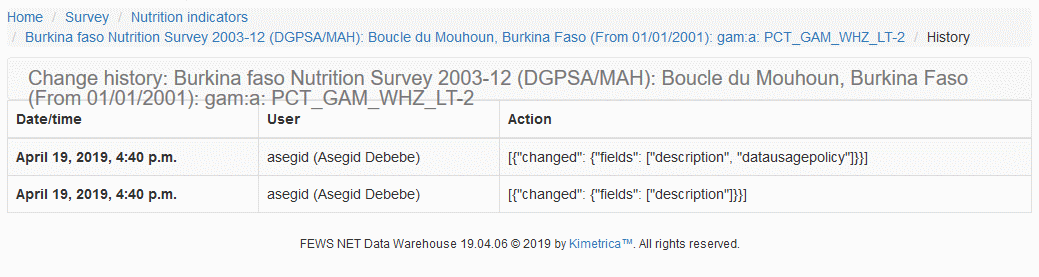
Fig. I: Nutrition Indicator Value History