
Adding and Changing Data
These are the existing categories, modules and sections within the Data Warehouse:
Data entry
Add a new Data Collection (manually or by uploading a file)
Add a new Survey (define metadata, optionally enter the 1st Survey Collection)
Edit a Survey (including adding a new Survey Collection)
Data processing
Display or edit an existing Data Collection (including Submit, Review and Publish)
Display or edit the data for an existing Collection Period
Change a Survey Collection Status (Submit Review and Publish)
Data analysis (display and export data)
Single Data Series
Multiple Data Series using a Price Data Set
Trade Flow Data Set
Download Survey Data (Survey Indicator Values)
Price
Exchange rates
Market products
Price indices, e.g. CPI
Common
Classified products
Countries
Country groups
Currencies
Unit of measure conversions
Units of measure
Price
Markets
Spatial
Administrative units
Geographic unit set versions
Geographic unit set
Geographic unit type
Geographic units
Livelihood zone types
Livelihood zones
Seasons
Survey
Indicator groups
Indicators
Localities
Survey types
Surveys
Admin
Log entries
Auth
Groups
Users
Common
Field offices
Sessions
Sessions
Most modules have Add and/or Change icons located on the far right side of the screen across from its title. You can select the name of the module on the left side of the screen to access the information in that area or click on the Add or Change button. The exact combination of modules and icons that are displayed will depend on the roles and privileges assigned to you. If you cannot see a Home screen entry that you should have access to, please contact the User Administrator to check that your user account has the necessary roles assigned to it.
If there are more records matching the criteria than fit on a single page, there will be a paginator at the bottom of the page that allows you to select other pages.
The first column in the list contains a check-box that you can use to select one or more records for further action. The action list at the bottom of the screen will always contain the Delete action, if you have permissions to delete records:
Field Officers (FO) can delete their
Add/Change
Form screens and required fields are shown in Bold face font.
Dates should be entered in the format YYYY-MM-DD. Date fields also have a pop- up calendar to enable to select the correct date easily.
After any attempted action, such as saving a new entry or deleting an existing one, you will see a message at the top of the screen telling whether the action was successful. Messages with a red background indicate an error and an unsuccessful transaction. Messages with a green background indicate success. A message with a yellow background indicates a warning message that may require further action.
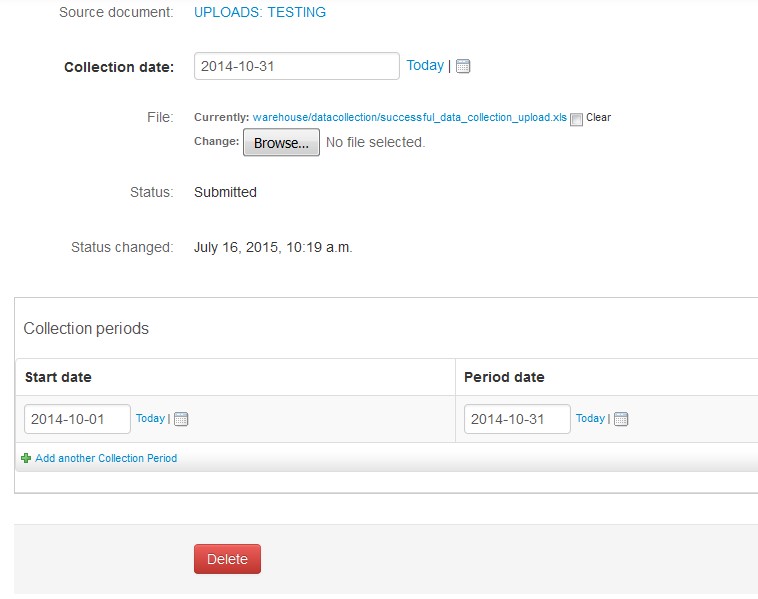
Figure 6. NTM can delete submitted data collections