
Changing your Password
If you are changing your password for the first time, or are logged in and prefer to change it ,below are the steps you will follow:
After logging in, click on the Welcome drop-down menu on the top navigation bar
Select change password
Enter the old password in the Old password field
Enter the new password in the New password field
Enter the new password again in the New password confirmation field to verify it
Click on Change my password
A pop up message will appear notifying the user the password is changed
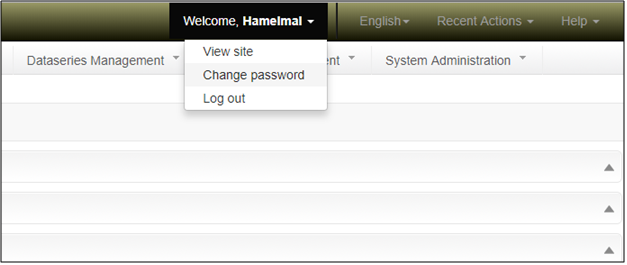
Figure: Password changing screen
If you forget your password, please contact the Data Warehouse User Administrator for a temporary password.