
Common
This menu will help the HO to establish the classified products that the system will use for different tasks, define currencies of different countries and create unit of measures and their conversions for the products of the system.
Window: Classified products
This page contains the list of the available classified products that are used in the system.

Figure: Classified products screen
Window: Add classified product
It is from this page that one can add/edit classified products. Fill the detail information and click the Save button.

Figure: Classified product adding screen
Window: Export classified products
One can export all the list of the classified products in the system by clicking the Export Classfied products button shown in the screen-shot below.

Figure: Classified products exporting screen
Window: Countries
This page contains list of the KDW countries.
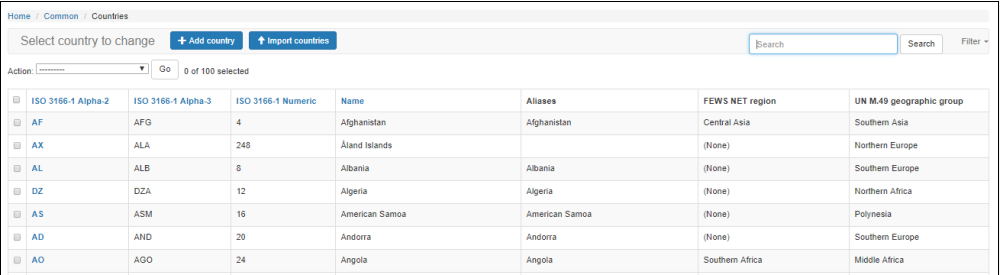
Figure: KDW Countries screen
Window: Add country
One can add a new country or edit an existing one . In order to add a new country click on Add Country and fill the detail information and click the Save button.

Figure: Adding countries adding screen
Window: Import countries
List of countries can be imported from this page. In order to import the list of countries, click the Choose File button and select the file. Next select the file type from the Format drop down box and click the Submit button.

Figure:List of countries importing screen
Window: Country groups
List of countries can be categorized with in the county groups.

Figure: Country groups screen
Window: Add country group
In order to add new country group , click the Add country group. Enter the detail information and click the Save button.

Figure: List of country groups adding screen
Window: Currencies
This page allows to add/edit the exchange rates of the different countries which can be used under the Dataseries Management module.
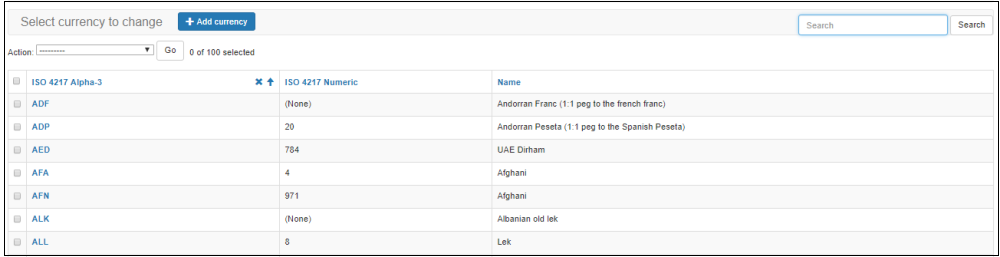
Figure: Currencies screen
Window: Add currency
In order to add new exchange rate currency, click the Add currency button. Enter the detail information and click the Save button.

Figure: List of currencies adding screen
Window: Unit of measure conversions
Unit of measure conversions between the different types of the units of measure will be ceated in this page.

Figure: Unit of measure conversions screen
Window: Add unit of measure conversion
In order to add new unit of measure conversion, click the Add unit of measure conversion button. Enter the detail information and click the Save button.

Figure: List of unit of measure conversions adding screen
Window: Unit of measure
This page allows to add/edit the unit of measure.

Figure: Unit of measure screen
Window: Add unit of measure
In order to add new unit of measure , click the Add unit of measure. Enter the detail information and click the Save button.

Figure: List of units of measure adding screen
Window: Import units of measure
To import units of measure as a bulk, click the Import units of measure button. And next click the Choose File button to upload the file that will be imported. Choose the file and select the file type from Format drop down box and finally click the submit button.

Figure: List of units of measure importing screen