
KDW Fine Grained User Permissions Options
A User can be either Staff (is the Staff atrribute is set) or External.
A User can belong to one or more User Groups.
A User Group is essentially a collection of Permissions that a set of Users are supposed to have. It is an easy way to manage user permissions.
Adding User Groups
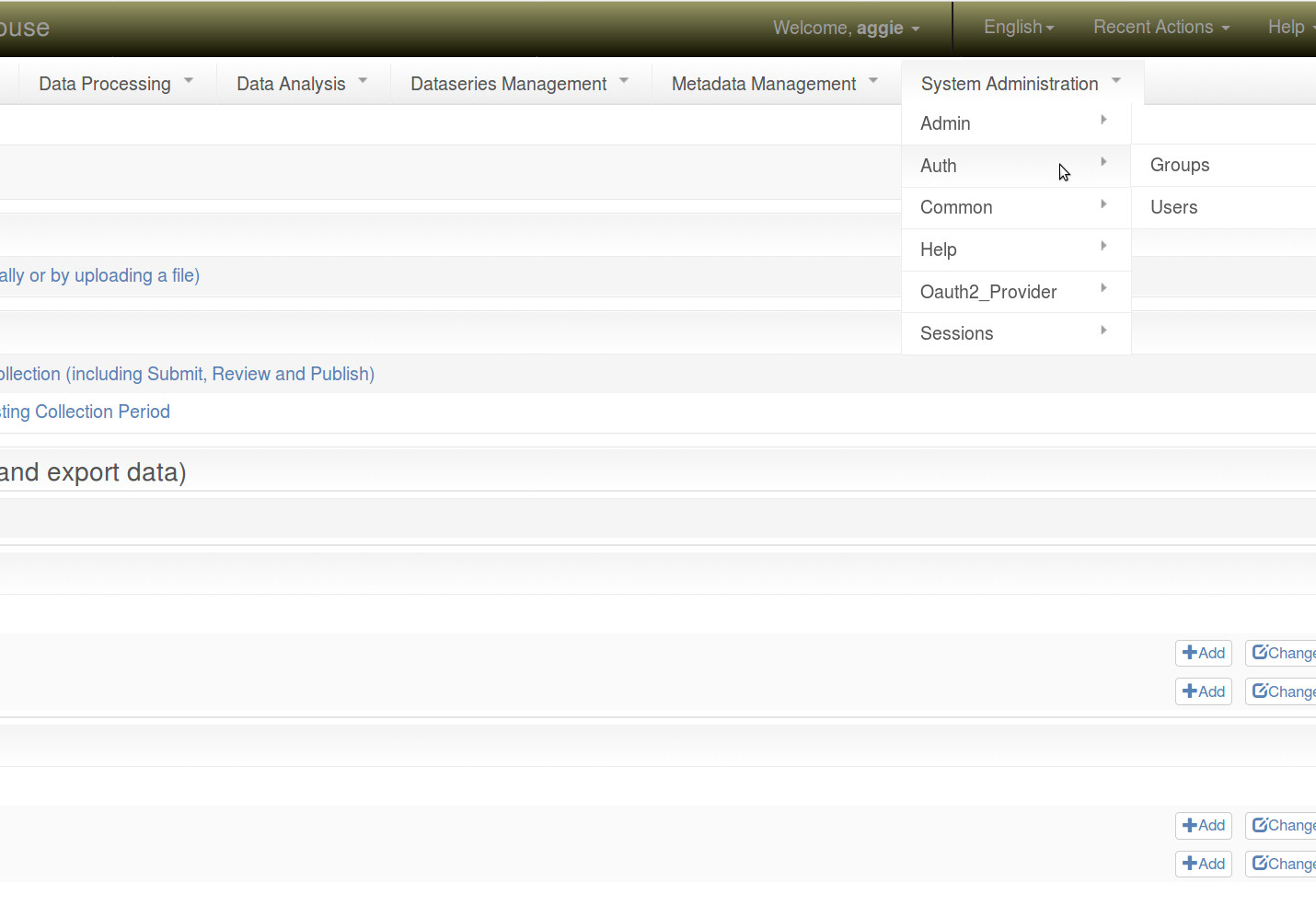
From System Administration menu, select Auth and then Groups to add/edit groups
Figure 1. The authentication menu
All groups have View permissions to all data domains.
Groups can be given specific view restricted permissions to enable members to view restricted datasources and dataseries. This should however be done carefully to avoid adding unwanted people to this particular group. It is advisable to add this permission at the user level.
Adding users
From System Administration menu, select Auth and then Users to add/edit users.
Figure 1. The authentication menu
A user should belong to at least one group based on their role. Once a user is added to a group, they inherit all the permissions assigned to that user group
Users can be given specific view restricted permissions to enable them to view restricted datasources and dataseries
Adding Field offices
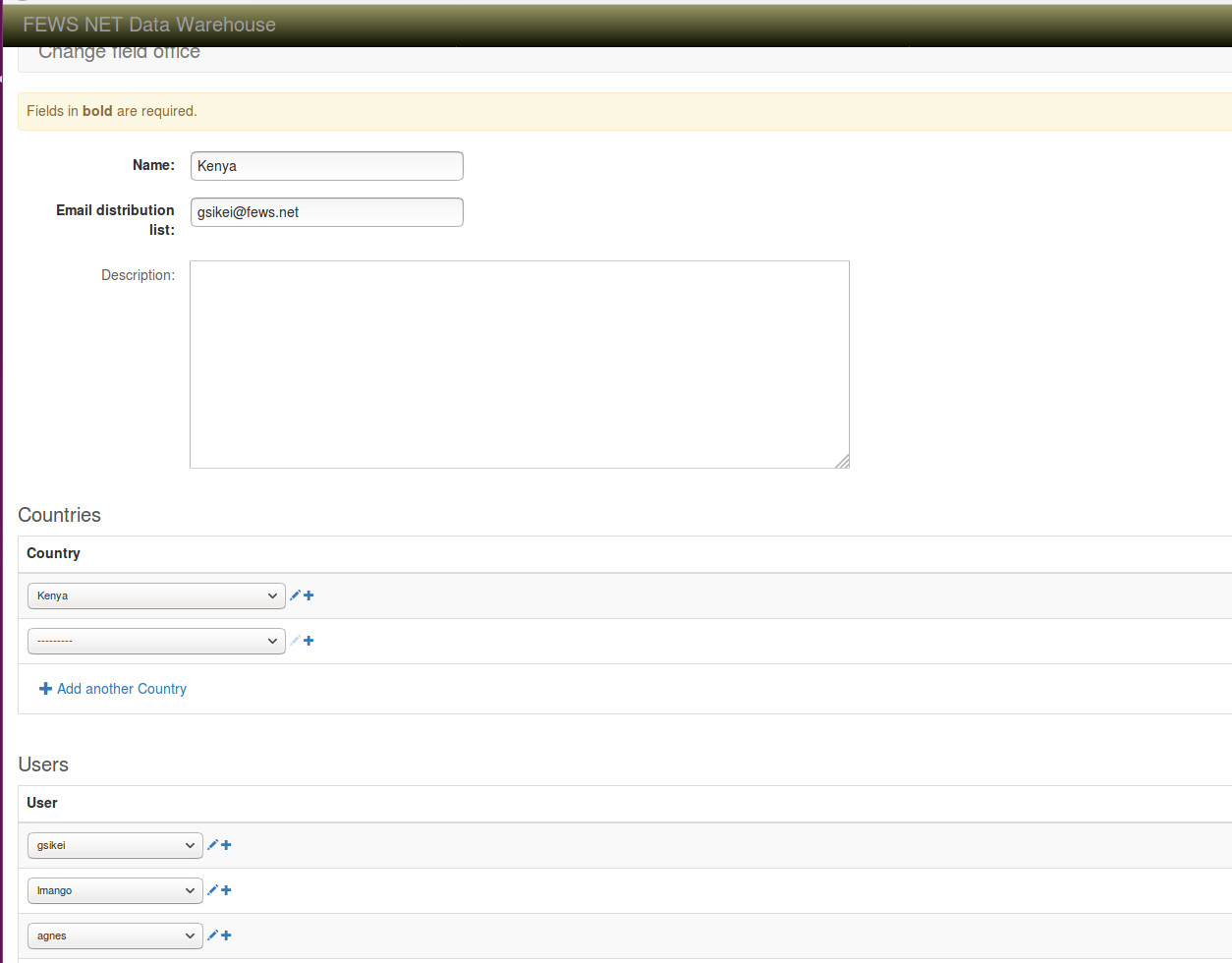
A Field Office determines which data a staff user is allowed to enter or update. Field Office users can only enter or update data for Data Source Documents for a Country assigned to a Field Office that they are a member of.
A User can be assigned to more than one Field Office
Figure 2. Field office details
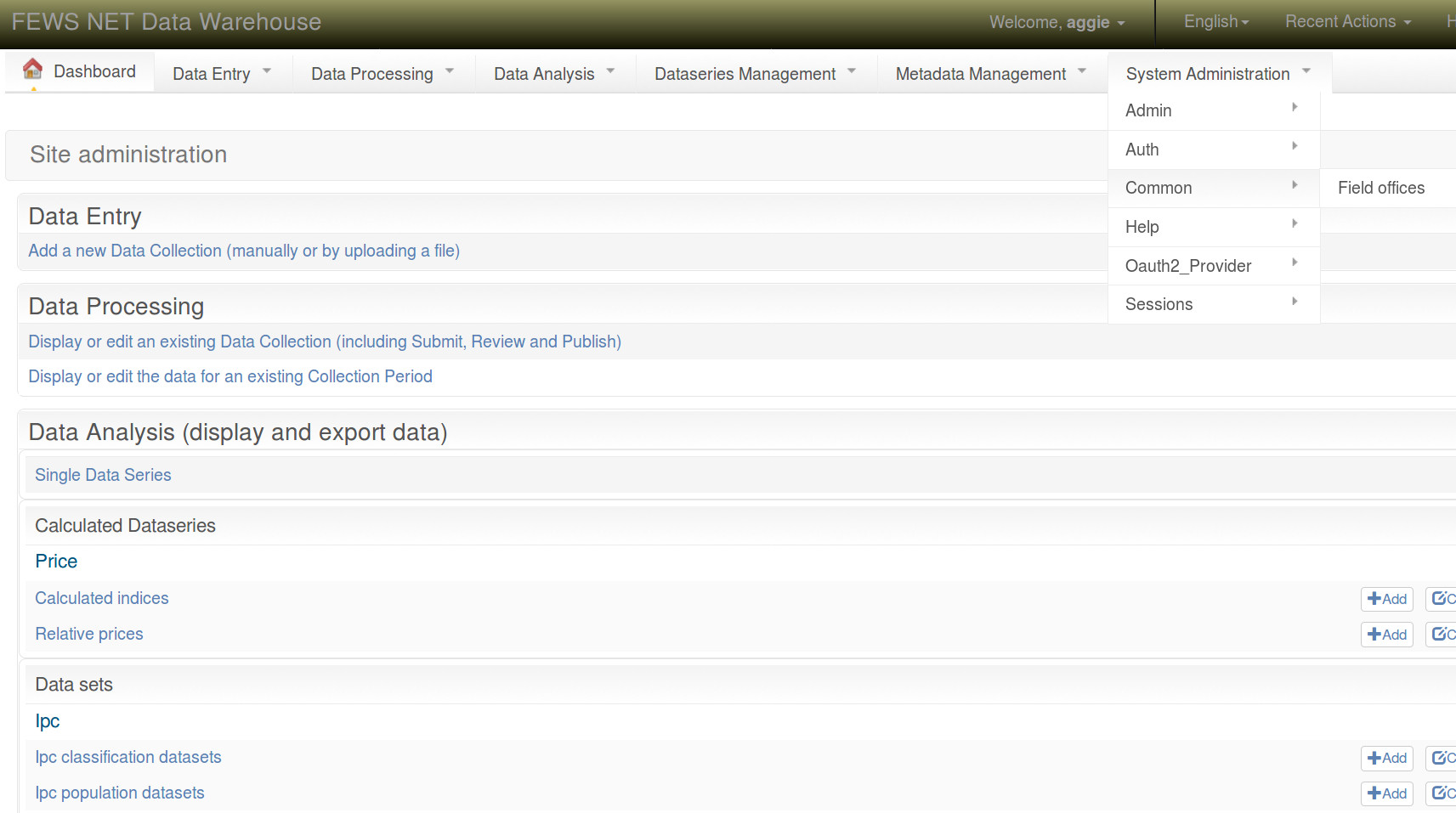
To manage field offices(Add/Edit/Delete/ field offices and Add people/ Add countries) , go to System administration>> common >> field offices Figure 3. Add field office menu
Visibility Options
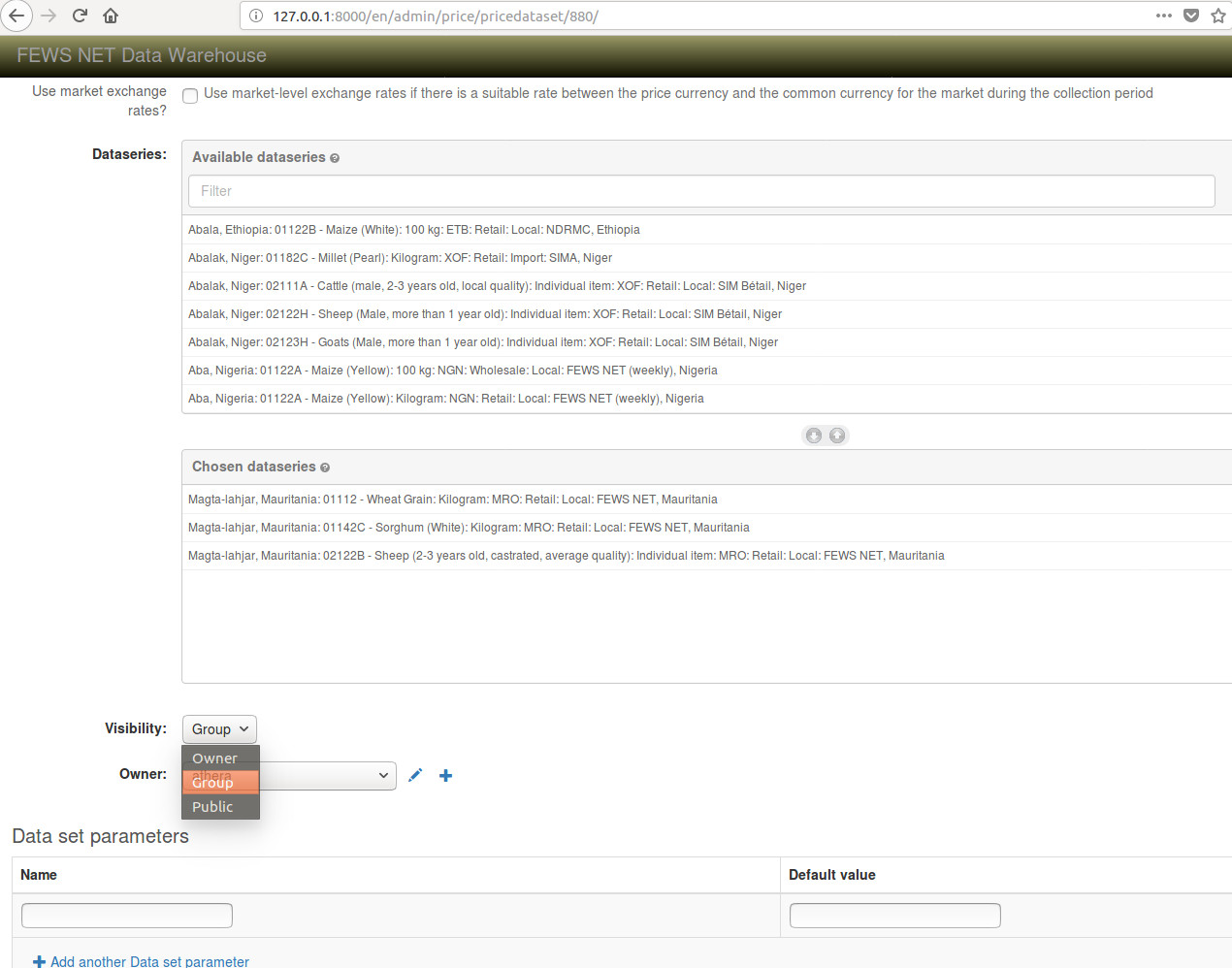
Datasets and Data source documents also have visibility restrictions. Datasets have a visibility of either owner meaning only the creator can see it, Group meaning members of the group that the owner is part of can view it and public which means anyone can see it.
Figure 4. Dataset visibility list
Data Usage Policies
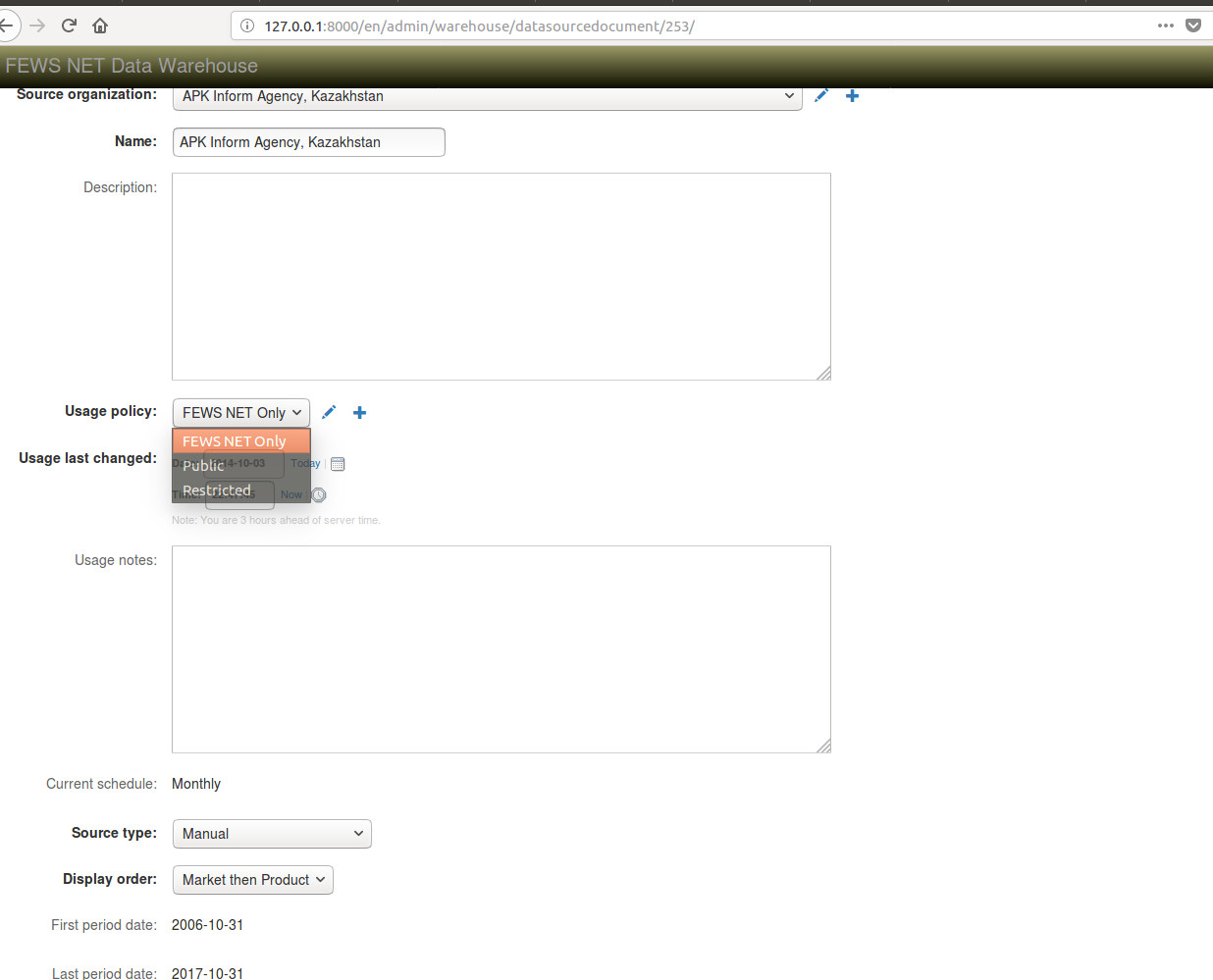
Data Usage Policies allow granular control of data access. Each Data Source Document has a single Data Usage Policy attached that describes the primary access control for data belonging to that Data Source Document. For example, data for Documents with the Public Data Usage Policy are available to all users, including anonymous users (i.e. without logging in). Conversely, data for Documents with the Restricted Data Usage Policy is only visible to individual Users who have been granted specific permission.
Data Series inherit the Data Usage Policy of the parent Data Source Document. However, it is possible to set a different Data Usage Policy directly for a Data Series, overriding the inherited Data Usage Policy. This allows for data that is collected from the same source to be managed together (as a single Data Source Document) which still allowing different groups of users access to different Data Series within it. A typical approach is to set the Data Usage Policy that applies to the majority of the Data Series on the Data Source Document, and then set a different Data Usage Policy directly on the Data Series that are exceptions. The Effective Data Usage Policy for a Data Series is the Policy used to determine user access, and will be the directly set Data Usage Policy for the Data Series if one has been applied, otherwise ti will be the Data Usage Policy inherited from the Data Source Document.
Data Source Document |
Data Series |
Effective Data Usage Policy |
|---|---|---|
Public |
Public |
|
Restricted |
Restricted |
|
Public |
Restricted |
Restricted |
Restricted |
Public |
Public |
Figure 5.Datasource/dataseries usage policy list
Object level permissions
Most permissions that are granted to a User or a Group control access to a particular screen or function, such as the ability to add a new Data Source Document, or to use the Price domain within the Data Explorer. However, some permissions are granted only to specific instances of an object rather than to all objects. These permissions are called “object level permissions”.
In particular, object level permissions are used to control access to data, using the following permissions:
access_datausagepolicy: A user or group that has theaccess_datausagepolicypermission on a specific Data Usage Policy can access (i.e. view, export or extract) any data for a Data Source Document or Data Series that has that Data Usage Policy. This is the primary mechanism for controlling access to data.access_datasourcedocument: A user or group that has theaccess_datasourcedocumentpermission on a specific Data Source Document can access (i.e. view, export or extract) any data for that Data Source Document. This augments the Data Usage Policy by allowing access to a particular user or group to be granted without having to create a new Data Usage Policy. It should be used for temporary access or other exceptional situations.access_dataseries: A user or group that has theaccess_dataseriespermission on a specific Data Series can access (i.e. view, export or extract) any data for that Data Series. This augments the Data Usage Policy by allowing access to a particular user or group to be granted without having to create a new Data Usage Policy. It should be used for temporary access or other exceptional situations.
Note that the access_datausagepolicy, access_datasourcedocument and access_datasourcedocument must never be assigned directly to a User or a Group. They must only be used as an object level permission for a particular Data Usage Policy, Data Source Document or Data Series. In these permissions are incorrectly assigned as a general permission rather than an object level permission, they have the effect of allowing the user access to all the data in the system.
To give specific groups(s) or user(s) rights to access an object such as a Data Usage Policy, you use the “object permissions” button, and assign the “Access Data Usage Policy” permission to the group or user.
Figure 6.Object permissions button
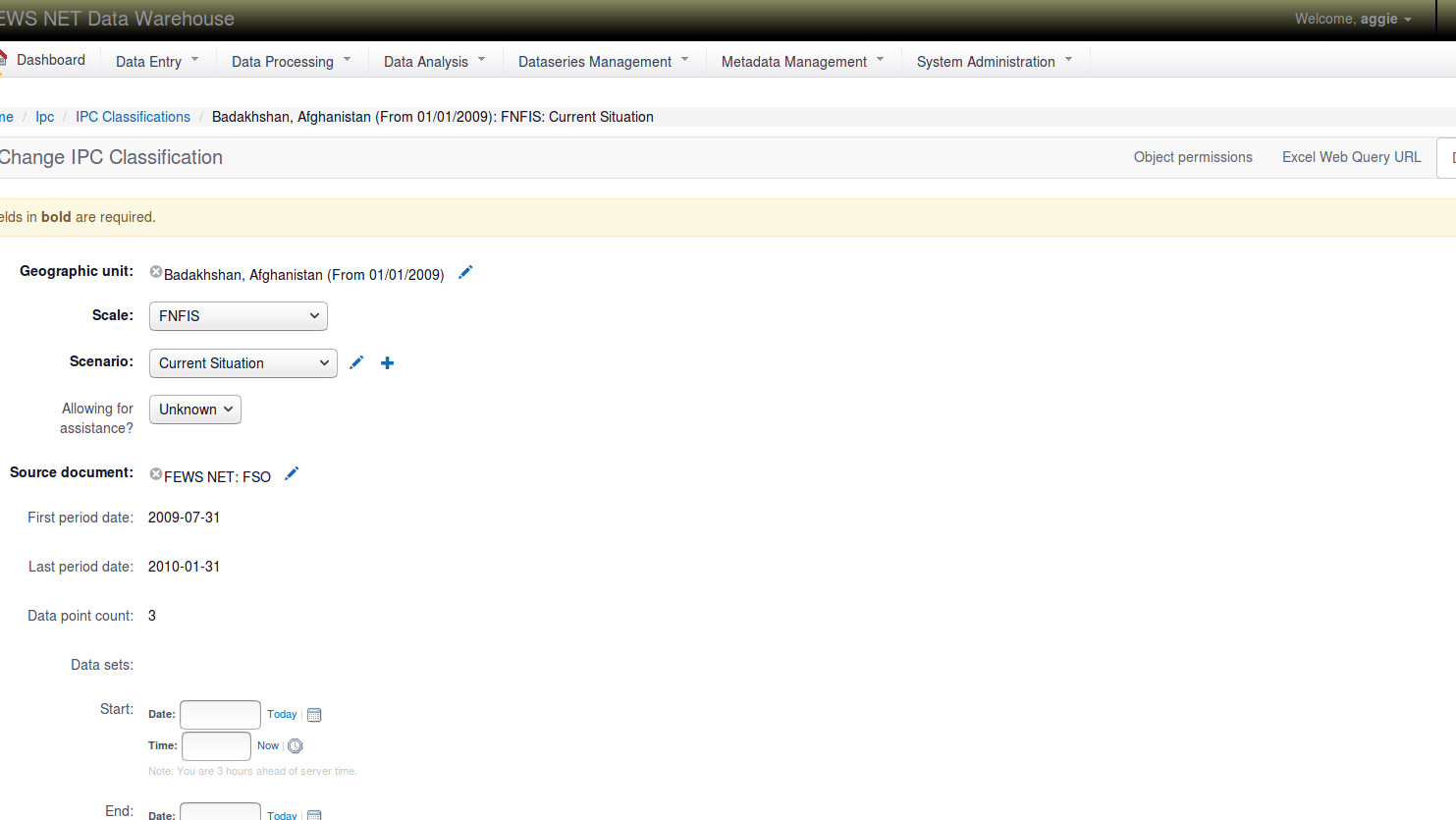
Figure 7.Object permissions list
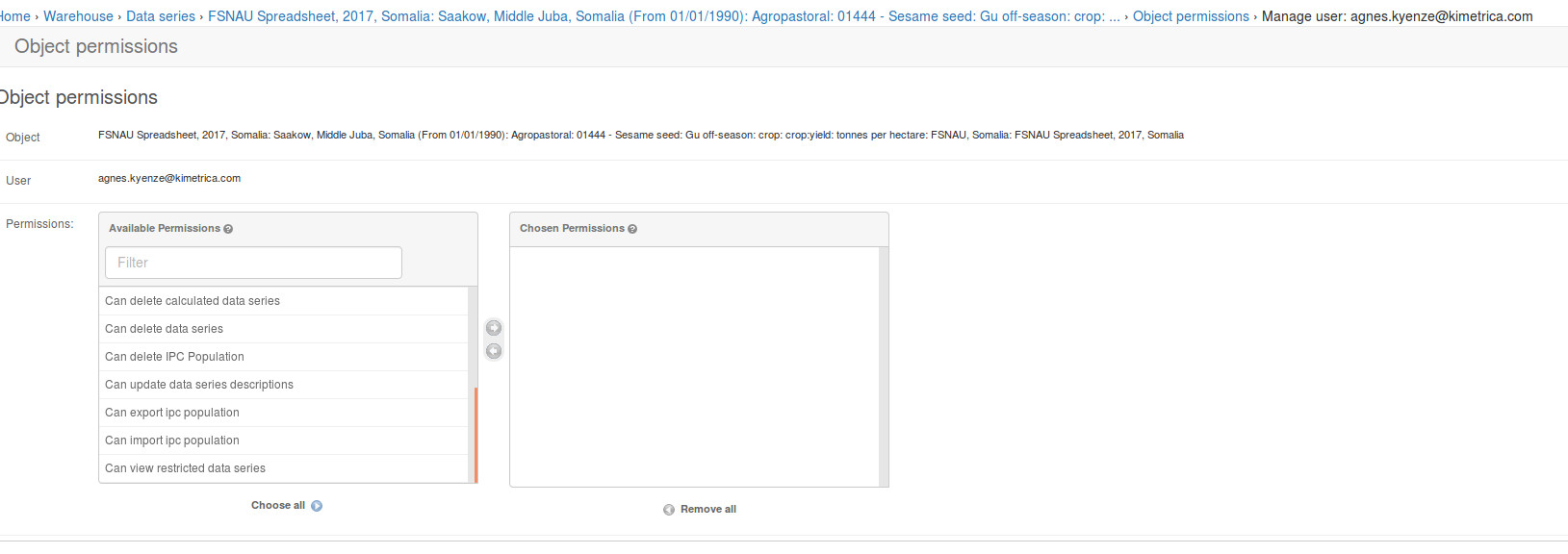
Figure 8.Object permissions example
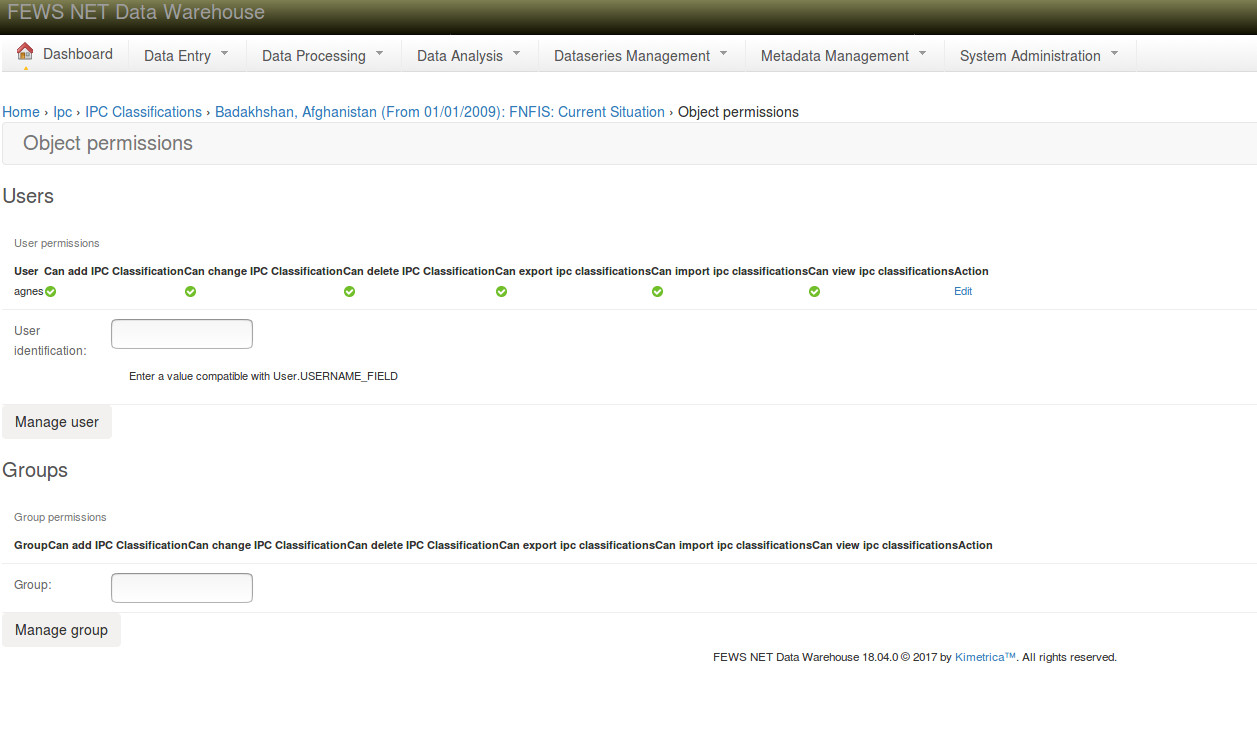
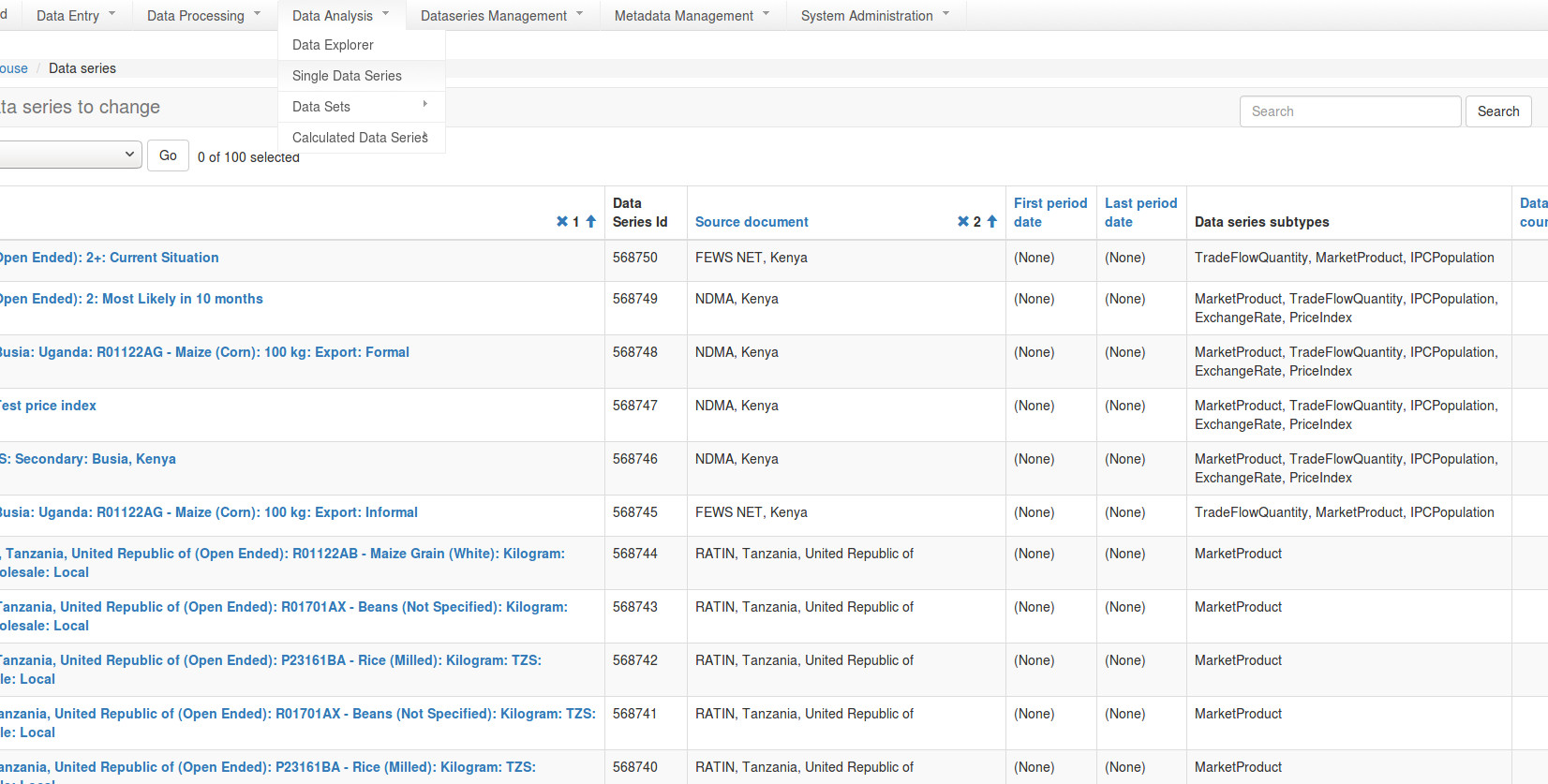
The “Access Data Series” permission for all data domains is available from the “Data Analysis > Single Data Series” Menu. You can filter by Data Series subtype and access the object permissions as shown above.
Figure 9.Main Data Series menu
Data Access Permissions
The Data Series and Data Points that are visible to a user are controlled by the combined access permissions the user has on specific Data Usage Policy, Data Source Documents and Data Series records.
Users without any access permissions will only be able to access Public data.
Note that users still require authentication and a view permission for specific type of Data Series in order to be able to use the Data Explorer. For example, to use the Price domain within the Data Explorer, a user needs the view_marketproduct permission in addition to the required access permissions.